
Delivery Card Element
Buy with Prime API is now available for early access
Sign up for early access to the Buy with Prime API using the 'Sign Up' button below. The API may change as Amazon receives feedback and iterates on it.
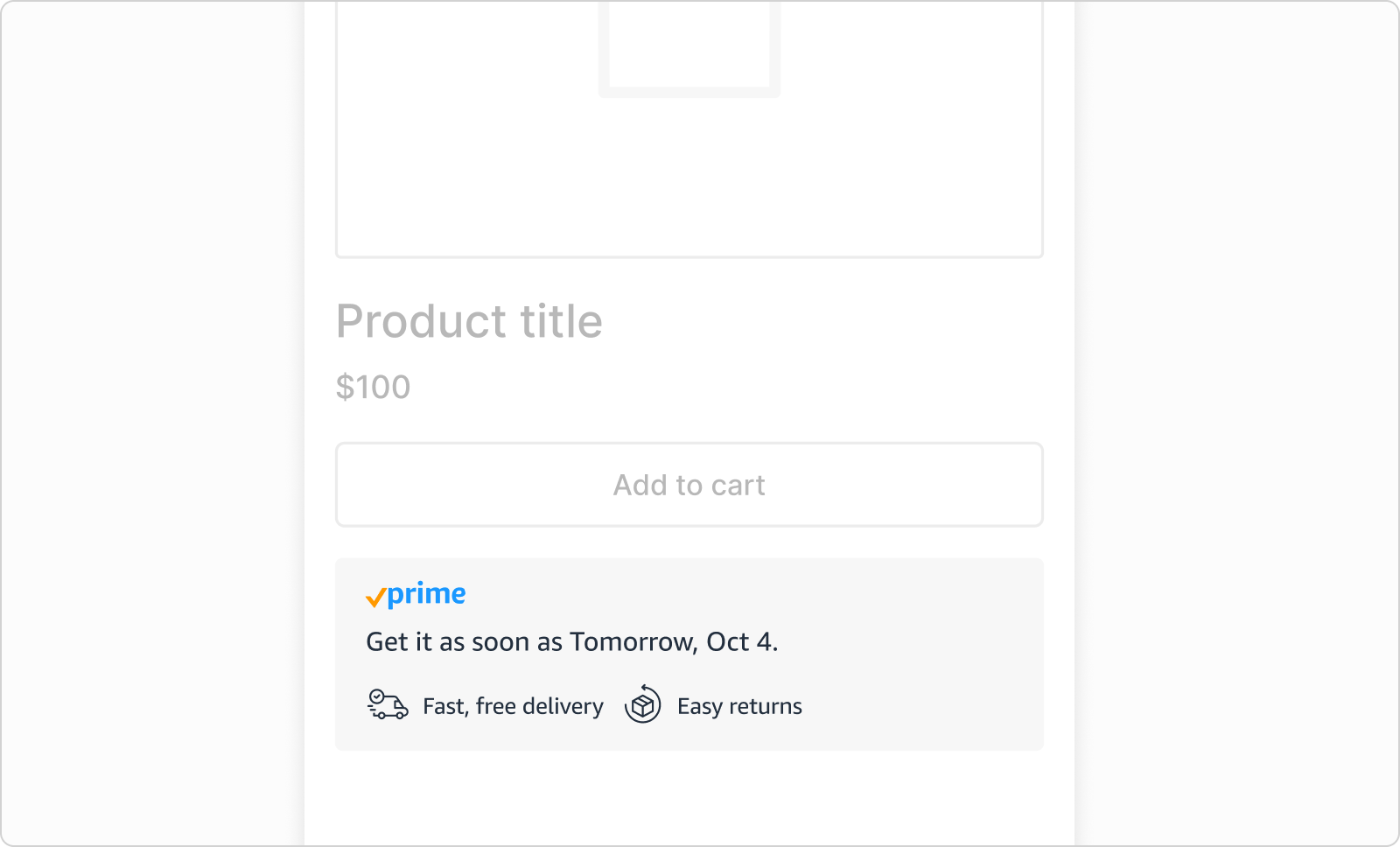
The delivery card element is a web component that displays the Prime checkmark logo, a delivery estimate, free delivery message, and return eligibility. Use the delivery card element on the product detail page to identify products eligible for Buy with Prime, provide shoppers with a delivery estimate, and indicate whether a product is returnable.
- JavaScript source:
https://cdn.elements.amazon/elements/amazon-delivery-card/v1.0/web-component.js. - HTML tag:
<amazon-delivery-card>.
The following image shows a delivery card element on a product detail page.
Attributes on the element tag
The delivery card element requires a product identifier attribute, and it has optional attributes for display settings.
Product identifier
One of the following:
| Attribute | Description |
|---|---|
product-external-id | An identifier from your ecommerce platform. |
product-id | A Buy with Prime generated product ID. |
product-sku | A SKU from your ecommerce platform. |
product-amazon-sku | Amazon SKU on Amazon Seller Central or Supply Chain Portal. |
You can also optionally specify a marketplace by using the product-marketplace-id attribute, which is set to US by default. For a site that doesn't use Shopify, see Handle product variants. For a site that uses Shopify, to support variants, use the following attributes.
| Attribute | Value | Description |
|---|---|---|
provider | "shopify" | Sets the ecommerce service provider. |
variant-helper | "true""false" | Determines whether the element automatically updates when a shopper selects a new variant on a product detail page. The default is "true". |
Appearance
| Attribute | Value | Description | Example |
|---|---|---|---|
show-explainer |
"true" |
Displays the message "Choose Buy with Prime at checkout." The default is "false". |
 |
color-mode |
"light""dark" |
The color mode of the element. The default is "light". |
"dark"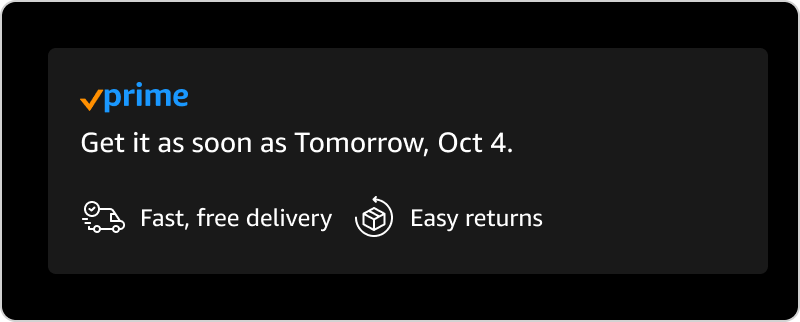 |
background-color |
Hex color code | The background color of the element. | "#FCF6E1"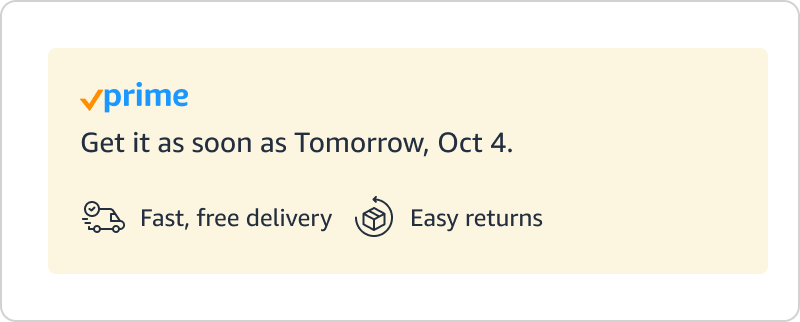 |
text-color |
Hex color code | The text color of the element. | "#B35E14"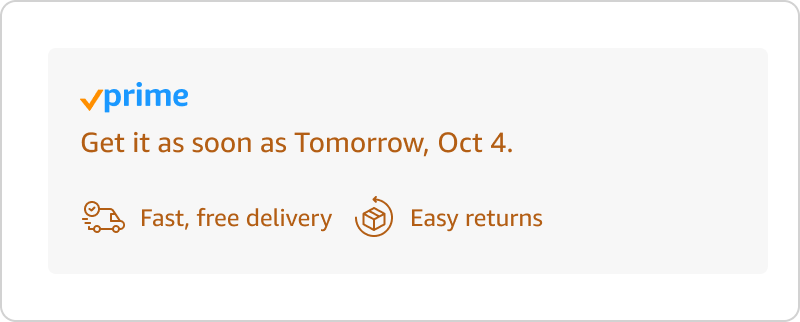 |
font-family |
Name of the font | The font of the element. The default is "Amazon Ember". |
"Times, serif"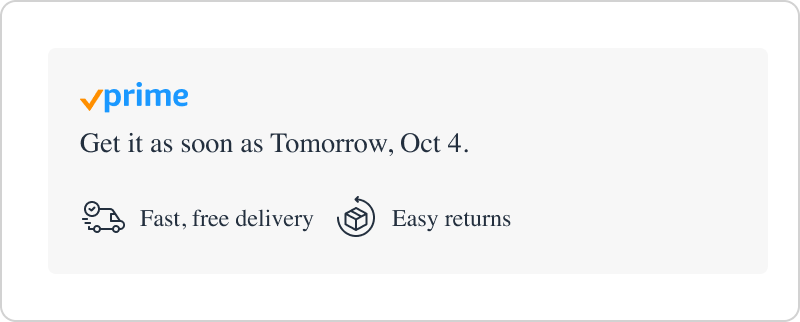 |
font-size-base |
Size in pixels, for example 16px |
The font size of the element. The Prime Check logo increases or decreases in size to match. The default is 14px. |
18px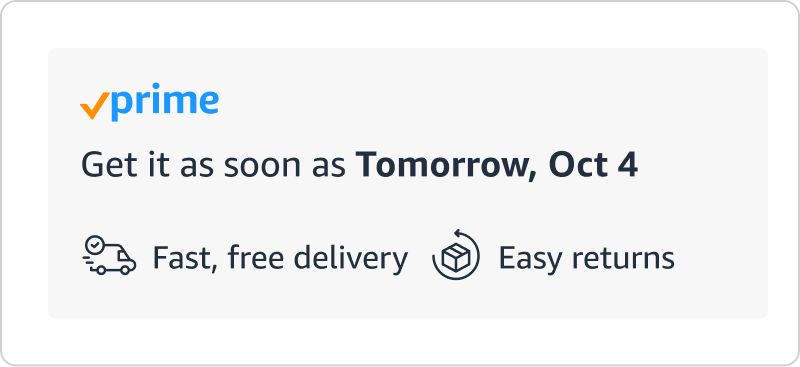 |
content-alignment |
"left""center""right" |
The horizontal alignment of the element's contents, including the Prime checkmark logo, the delivery message, and the delivery and returns labels. The default is "left". |
"center"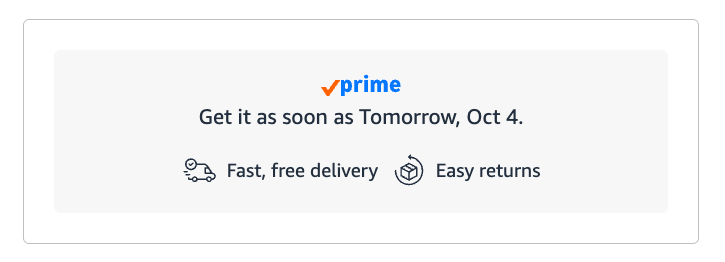 |
corner-style |
"rounded""square" "pill""custom" |
The corner style of the element background. If you choose "custom", you must also set the border-radius attribute. The default is "rounded". |
"pill"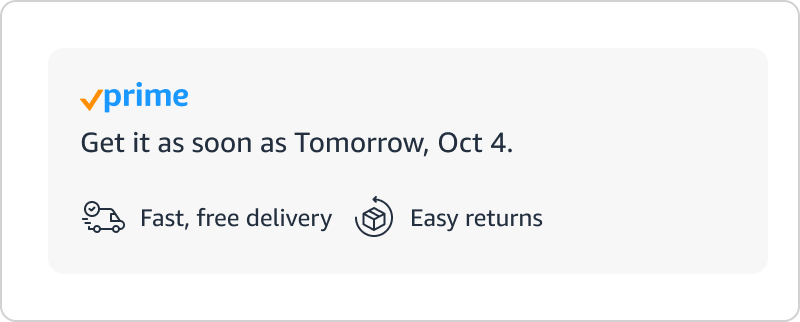 "square"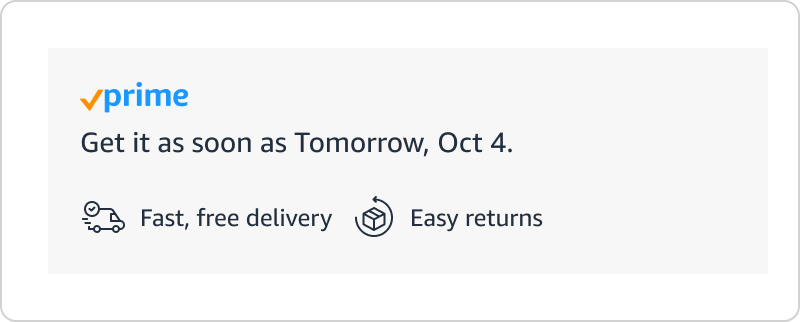 |
border-radius |
Size in pixels, for example 24px |
To set a border radius, you must also set corner-style to custom. |
24px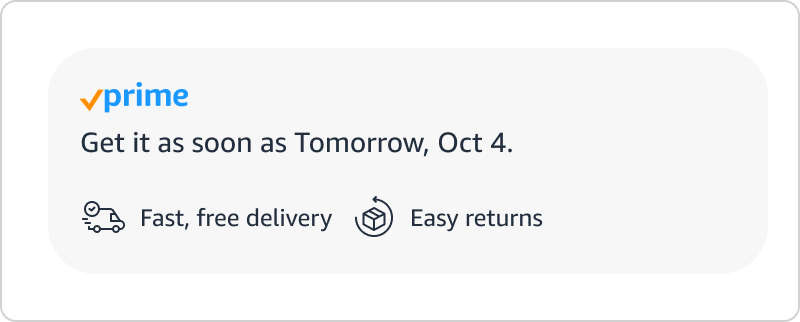 |
Example
<amazon-delivery-card product-external-id="[YOUR-PRODUCT-EXTERNAL-ID]" show-explainer="true" color-mode="dark">
</amazon-delivery-card>
Use a different alignment on mobile and desktop
The content-alignment attribute applies the same alignment at every screen size. To use a different alignment on mobile than on desktop, update the attribute from your own theme code.
The following sample code is a starting point for centering the element's contents on mobile and left-aligning them on desktop. It's provided as is and isn't part of the element's API. You're responsible for testing and maintaining it on your site.
<script>
  /* Amazon delivery card: center on mobile, left on desktop. */
  var __amazonDeliveryAlignmentWatcherInitialized;
  if (typeof __amazonDeliveryAlignmentWatcherInitialized === 'undefined') {
    __amazonDeliveryAlignmentWatcherInitialized = true;

    (() => {
      // Match this to your theme's mobile breakpoint.
      const MOBILE_QUERY = '(max-width: 749px)';
      const ELEMENT_SELECTOR = 'amazon-delivery-card';

      const mobile = window.matchMedia(MOBILE_QUERY);

      const applyAlignment = () => {
        const alignment = mobile.matches ? 'center' : 'left';
        document.querySelectorAll(ELEMENT_SELECTOR).forEach((element) => {
          element.setAttribute('content-alignment', alignment);
        });
      };

      // Fires only when the breakpoint is crossed, not on every resize tick.
      mobile.addEventListener('change', applyAlignment);

      applyAlignment();
      if (document.readyState === 'loading') {
        document.addEventListener('DOMContentLoaded', applyAlignment);
      }
    })();
  }
</script>
On your product detail page template, add the script after the <amazon-delivery-card> tag. For a site that uses a Shopify Online Store 2.0 theme, you can add the script in a Custom Liquid block in the same section as the element. You can also add the script below the element in your theme's product section file, for example sections/main-product.liquid.
In the script, set MOBILE_QUERY to the mobile breakpoint for your theme. The value 749px is an example. On desktop, the script sets content-alignment to "left", the default value, instead of removing the attribute.
The script updates all delivery card elements on the page when the page loads and when the viewport width crosses the breakpoint. If your theme adds a delivery card element later, such as in a quick view, the script doesn't update that element until the viewport width crosses the breakpoint again.
Related topics
Updated 2 days ago